
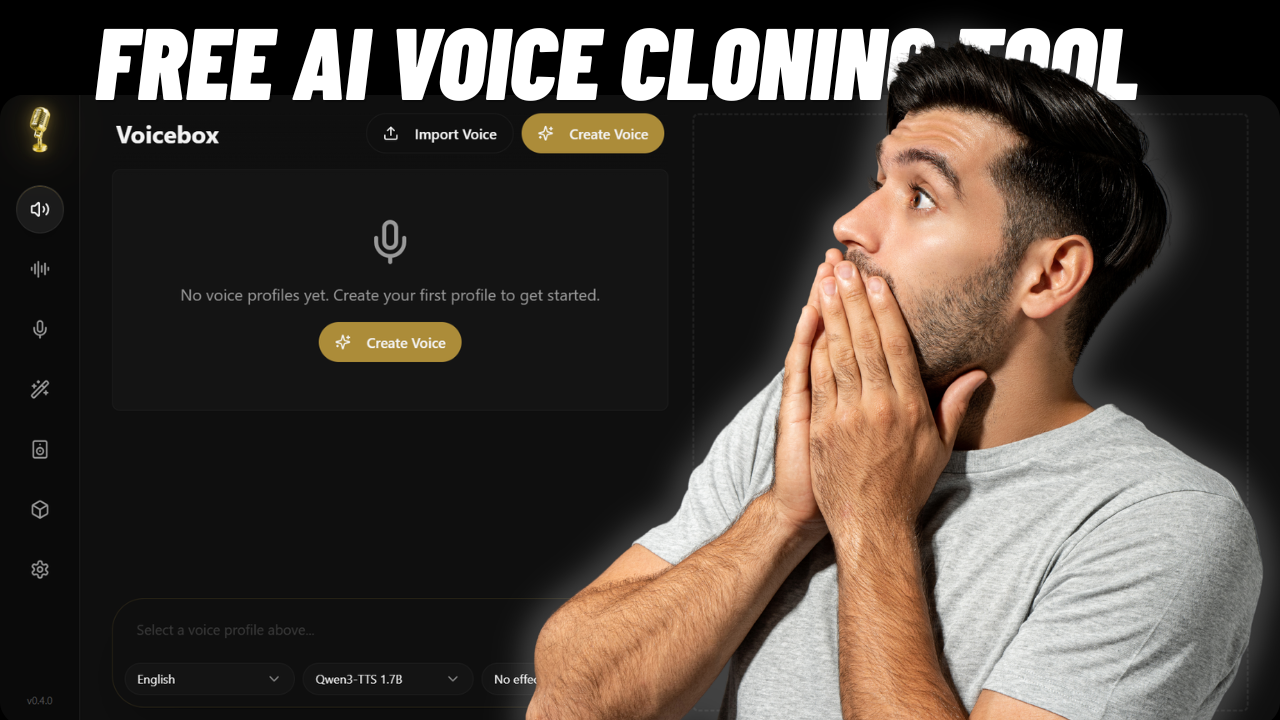
Today I am literally going to show you something that will completely blow your mind. I am talking about Voicebox. You must have heard about many paid tools that clone your voice or can generate AI voices. They can do text-to-voice or voice-to-voice conversions, etc. Right?
Now, this article is only for informational purposes. Keep this in mind. You should not get into any trouble by doing these things. I am only giving you information about what new things are happening in the market.
Today we will talk about a special software. Let’s start this special article on AI Voice Clonning.
What Makes This Tool Special?
Now let me discuss what’s special in this article.
- First of all, the software I am showing you is completely free of cost.
- The biggest thing is that you will not need the internet once everything is set up.
These two things are very special in today’s article.
Important Note
This guide is shared for educational purposes only.
Voice cloning is powerful, but it should be used responsibly. Avoid using someone’s voice in a way that could cause harm or legal issues.
How to Download the Software?
Now look, I am giving you a link below. If you are on Windows, you can download the Windows x64 version. If you are on Mac, you will find different Mac versions here. You can easily download it according to your machine.
Once downloaded:
- On Mac – Drag the app into Applications
- On Windows – Follow the installation steps
After installation, open the software and let it load.
System Requirements (Important)
Now see, your PC speed matters a bit. If the process is slow, don’t worry – your PC might be slower. But you will still get an overall experience of what to do. Later, you can upgrade your PC.
Note: You can find all the system requirements in the download link above.
Understanding the Interface
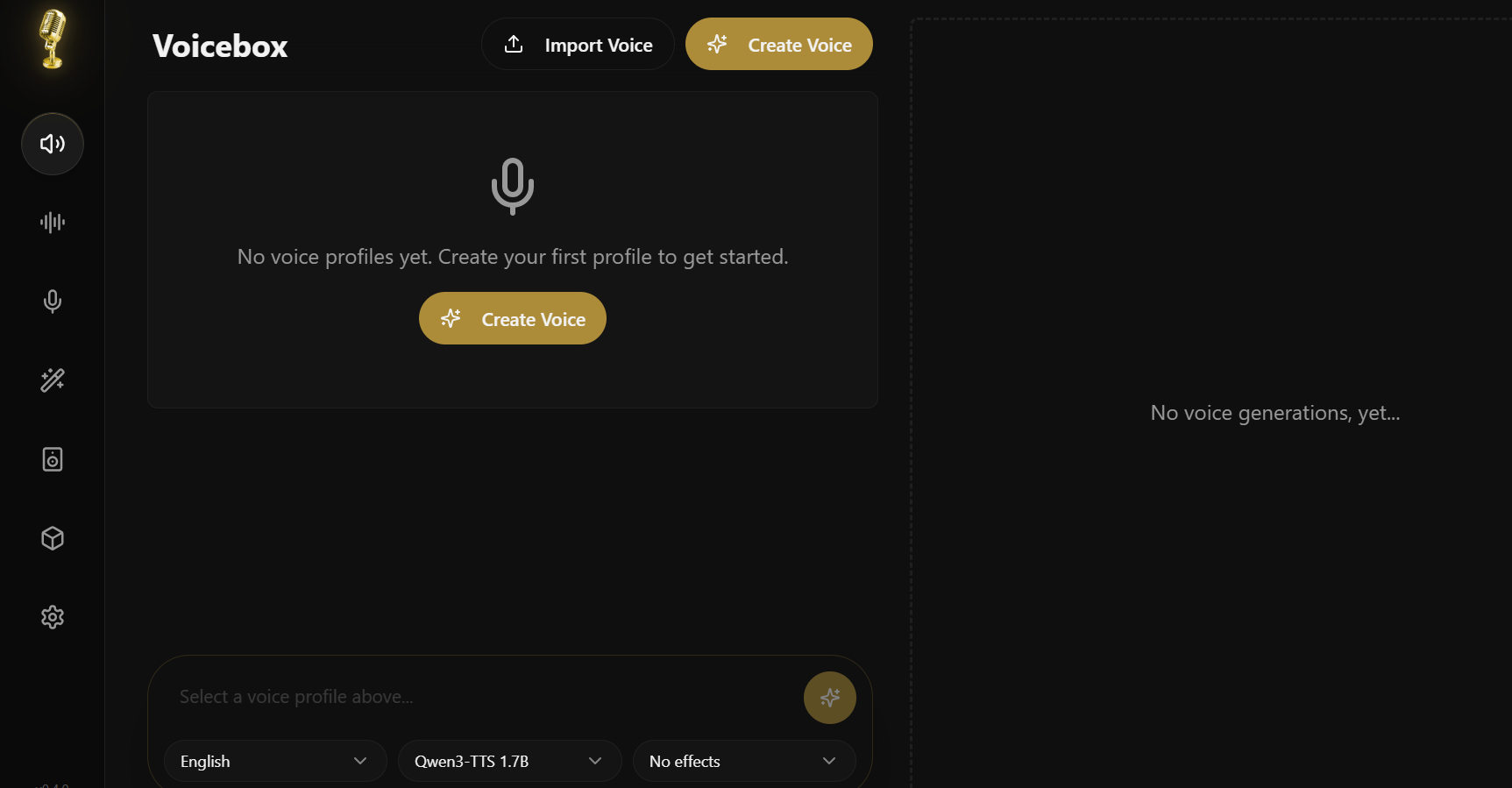
Now you can see “Calibrating Synthesizer.” The Voice box has fully loaded. The interface is very simple. On the left side, you get different options. In the center, there is a “Create Voice” option with Import and Create. In Import, you can import your original voice or any recording. In Create Voice, you can create voices. I will show everything through demo.
Now there is a section called Stories. It seems like project files where you can create projects. Then there is a Voices section – whatever voices you create will appear here. Below that, there is Audio – this shows which audio device is connected (speakers, headphones, etc.).
Model Setup
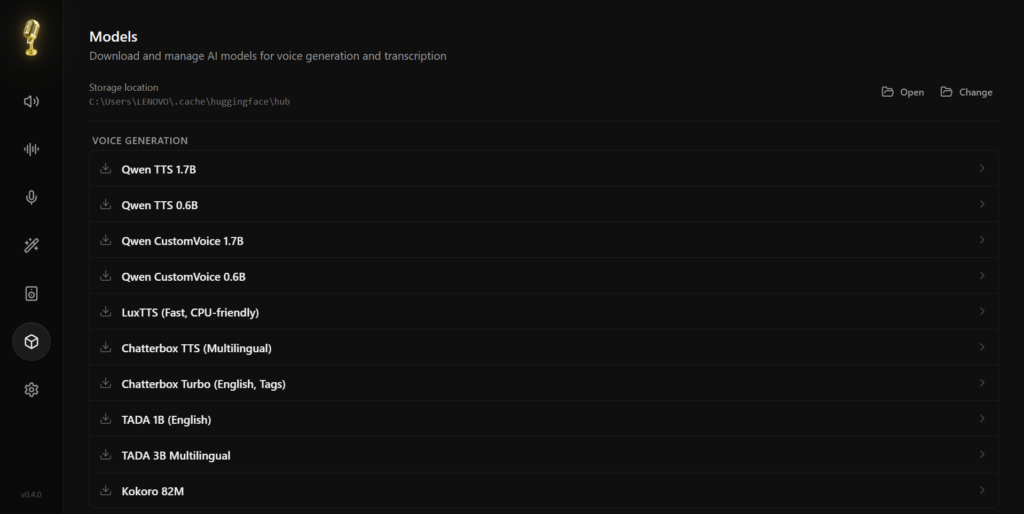
Now this part is important: Model Management. There are different models available. If your PC is not very powerful, you can download smaller models, such as the 0.6 billion parameter model. There is also a 1.7 billion parameter model, which I will download. However, the best one is Chatterbox TTS (Multilingual), and it works perfectly here. So make sure to download this model, as it includes all the required components.
There is also Whisper Base for transcription. First, we download the model. I click download on the 1.7B model (around 4.2GB). It starts downloading. Also, you need to download Whisper Base. Now all models are downloaded.
Let’s explore options one by one.
Creating Your Own Voice
First, go to Voices. You will see Import Voice and Create Voice. I select Import Voice. I try to import my voice. But it asks for a valid Voicebox ZIP file. So MP3 or WAV will not work—you need a ZIP file. Now I go to Create Voice.
Here you get options: Upload, Record, and System Audio.
- I choose Record and record something in Hindi: “Guys, welcome back to the channel…” I record random audio. Now I click Transcribe.
- It converts it into English text.
- Now I name the voice “Saad,” description: “A male voice for YouTube,” language English, and click Create Profile.
- Now the profile is created. When I tap it, I get “Generate Speech using Saad.”
- Now I paste some random text and select the model. Then I click Generate Speech. It starts generating audio.
- After processing, the voice is ready. I listen to it – it sounds very natural. Amazing, very real.
You can run this offline and free of cost. Now I test with a short story. It generates a 31-second audio. The voice is perfect.
Read More: How to Get ChatGPT Premium for FREE (2026)
Final Thoughts
AI is moving fast, and tools like this show where things are heading. But with power comes responsibility. Use it wisely – for learning, content creation, and innovation.
Have you tried any AI voice tools before?
Share your thoughts – I’d love to hear your experience.