

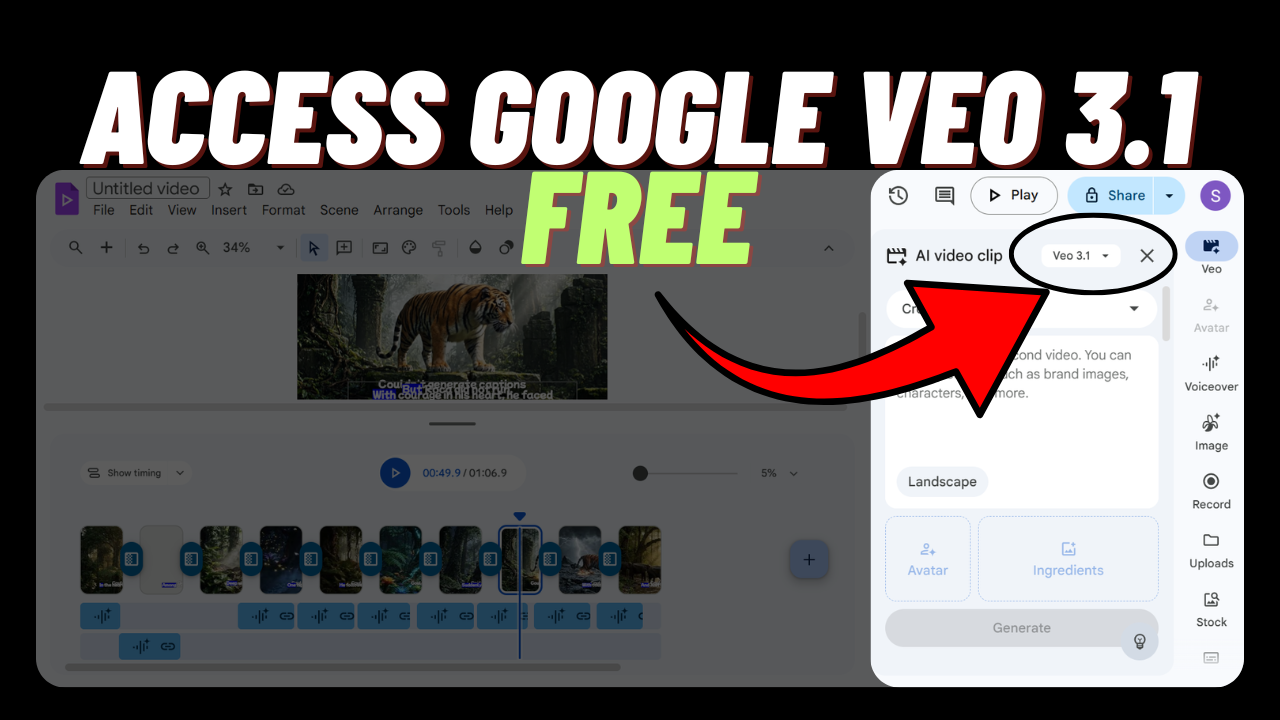
In this article, I’m going to show you how to access Google’s AI video model Veo 3.1 for free and explore its powerful features.
This advanced AI tool allows you to generate high-quality videos along with automatic audio creation. If you already have a script, you can easily convert it into AI-generated voice using the same platform.
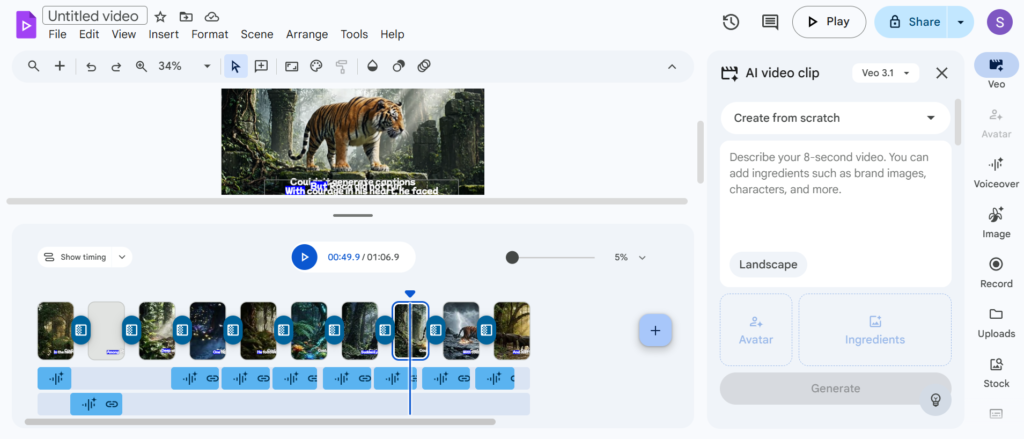
One of the standout features of this tool is live video editing during generation. You can create and edit your video at the same time, making the process faster and more efficient. It also lets you refine each scene with AI-generated voiceovers for a more professional result.
Another important feature is automatic caption generation. The tool can instantly create captions for your videos, saving time and improving accessibility.
This is not just an AI video generator – it also works as a complete editing platform. You can generate videos, edit them, and enhance them all in one place.
In addition, the tool can generate images that can be used within your videos. It also includes a recording section, allowing you to record your own voice or other audio directly.
You can upload your own images and videos, or even create videos using your personal media. The tool is known for maintaining strong consistency across scenes, which helps produce smooth and professional-looking content.
On top of that, it provides access to stock images, videos, and avatars, giving you even more creative options to build engaging content.
Step-by-Step Guide to Google’s Veo 3.1
To access this AI tool, you just need to follow a few simple steps.
First, go to Google and search for “Google Video AI.” Open the official platform from the search results. If it’s not the first link, you can select the next relevant option.
Once you’re on the website, sign up using your Google account. After logging in, you’ll be taken to a dashboard that looks like a professional video editing platform.
On the right-hand side, you’ll find a variety of editing tools and options. You can generate videos using Veo 3.1 by selecting either “Create from scratch” or “Animate an image,” depending on your needs.
After choosing your preferred option, click on the generate button. The system will take a short time to process your request and create the video.
Once your video is ready, you can drag and drop each generated clip into the timeline. This allows you to arrange multiple scenes and easily create longer videos.
Finally, you can edit your video as you like – add transitions, adjust scenes, and include voiceovers using AI or your own recordings.
You can also use Google Enterprise for free, which allows access to Nano Banana Pro for unlimited use at no cost.
Note: This AI tool allows you to generate up to 10 videos per month per Google account.
Conclusion
In conclusion, Veo 3.1 is a powerful all-in-one tool for creating, editing, and enhancing AI videos. It’s easy to use, time-saving, and perfect for both beginners and content creators.
Try it today and take your video creation to the next level.